
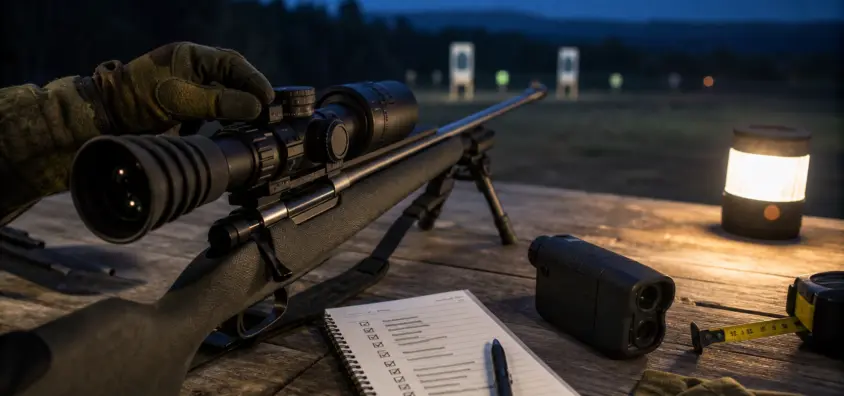
July 7, 2026
Thermal Scope Ballistic Calculator Problems: Compass, Inclinometer, LRF, and Profile Checks
A Thermal Scope Ballistic Calculator may be helpful but is not magical. If the suggested hold point is not the actual point of impact of the thermal scope then the issue is likely in the setup chain: zero, active profile, range input, ammunition data, sensor calibration, app sync, or field verification.
I use "smart scope features" like I use a fresh 0. I don’t really trust them since the screen looks confident. I trust them when the rifle, load, profile, distance and impact on the target have been verified in a controlled manner. This is even more important for those hog hunters, coyote and predator hunters who hunt with AR-15s, AR-10s, bolt guns and multiple loads throughout the night.
Make the rifle safe before doing any menu work (when the optic is on a rifle). Muzzle in a safe direction, finger off the trigger, and no trouble shooting behind a live gun.
The Short Version
Most problems with thermal scope ballistic calculators are due to a faulty start, not a bad calculator. Before accusing the scope of problems, check the following:
- Check for base zero, on paper or using a proper thermal target.
- Check the current thermal scope ballistic data: rifle, load, zero distance, sight height, units and reticle/display mode.
- Test the thermal scope LRF/manual range with known distances.
- Review yards/meters, MOA/mils, inches/cm and duplicated profile names.
- Comply with model manual regarding thermal scope compass calibration, thermal scope inclinometer setting and sensor prompts.
- Ensure that the thermal scope ballistic app (or thermal scope Bluetooth app) has been synced to the scope (as per the model).
- Profile names, active profile, zero data and ballistic settings should be checked again after every thermal scope firmware update.
- Trust at night only a thermal scope that has been tested at a set distance.
A smart thermal scope should assist you plan range and drop information. It is not intended to substitute for safe handling practices, target identification, legal judgment for the hunter, or known shooting results.
What a Thermal Scope Ballistic Calculator Actually Does
Thermal scope ballistic calculator will calculate the amount of correction required for a particular shot. It may utilize your zero distance, bullet data, muzzle velocity, sight height, range, angle and sometimes app-based environmental data (depends on the model). The output can be in the form of a moved aiming point, a holdover reference, a reticle cue or displayed correction.
The calculator can only process the information it has. The screen answer may appear accurate yet it is incorrect, such as if the active profile indicates the rifle is zeroed at 100 yards with one cartridge, but the rifle was actually zeroed at 75 yards with a different cartridge.
It Does Not Replace Zeroing
A loose mount, bad base zero, shifted thermal scope zero profile or a load which does not correspond to the data entered cannot be corrected by the calculator. If you’re not certain that the rifle is still zeroed, revisit the fundamentals in NV Guide USA’s guide on how to zero a thermal rifle scope.
If your optic has been bumped or removed or remounted, or is displaying symptoms of thermal scope zero shift, check your symptoms against the common symptoms of thermal scope zero shift symptoms found at thermal scope losing zero before wasting time in ballistic menus.
Built-In Calculator vs Phone App vs Rangefinder
The different systems work the workflow in different ways:
The profile can be stored in the scope by using an onboard calculator. A phone application can create or modify the profile, and upload it to the optic. Distance can be sent directly to the ballistic feature with a built-in thermal scope rangefinder or laser rangefinder. You may have to set the range on a handheld rangefinder. The correction is either displayed on some scopes or the aiming cue on others is shifted, or the hold on a display is adjusted.
To learn more about rangefinding capabilities, check out NV Guide USA’s article on the thermal scope rangefinder.
Why Brand Workflows Differ
Profiles, LRF data, app sync, weather, display modes and firmware can all be different on ATN ballistic calculator workflows, Pulsar Stream Vision Ballistics, Pulsar ballistic calculator features, AGM, HIKMICRO, InfiRay/iRay, Sightmark, RIX and other smart thermal scope systems.
Never combine directions from different brands or even different models. Read and follow the manual and app instructions for your optic/firmware version.
Why Smart Scope Corrections Go Wrong
Wrong Active Profile
This is a very simple error to make. You can have a profile set for two rifles, two loads, two Zeros, or two reticle setups. Use of the incorrect active thermal scope ballistic profile causes the calculator to respond to a question other than the one asked.
Ensure that the profile name is correct on the scope before shooting. Don’t assume that if the app profile is installed on the phone it is "on".
Incomplete Ballistic Data
A good thermal scope profile setup should not rely on guesses but on real facts. At minimum, document:
- Rifle and barrel length
- Cartridge and bullet weight
- Bullet model and ballistic coefficient
- Muzzle velocity, preferably chronographed from your rifle
- Sight height or scope height over bore
- Zero distance
- Units used by the app or scope
Once you confirm a drop (if you do), it should be adjusted in the system.
Box velocity is a starting point not a guarantee. The actual result may shift due to barrel length, lot change, suppressors, temperature and ammunition changes.
Zero Was Never Confirmed After Setup
If the base zero is off, then each computed correction is made from a faulty starting point. This is true even if the LRF is correct and the ballistic app appears clean.
Start at the known zero distance. Before testing any smart correction, make sure to confirm point of aim and point of impact.
Range Input Is Wrong or Unstable
The LRF thermal scope must have an operational return. Ambiguous ranges can be caused by small animals, brush, grass, rain, fog, dark background, steep angles, and reflective clutter. It is also possible to make a mistake when manually entering the range, e.g. if the user types 175 when it should be 125, or types yards when it should be meters, or fails to adjust the range when stands are moved.
If the range is incorrect then the hold is incorrect.
Angle Compensation Is Misunderstood
Thermal scope angle compensation is intended to compensate for the shooting geometry, model dependent, (up or down hill). The practical aspect is straightforward: The ballistic solution can be based on a horizontal distance or angle adjusted logic, not only on distance along the line of sight.
Avoid field game of “what was the name?” Before hunting with your optic, learn the angle it will apply to a known distance, and also know what angle it will apply to what distances.
Compass, Inclinometer, Cant, and Sensor Calibration
What the Compass Is Actually Used For
Thermal scope compass calibration is important if you use compass data for any of the following: heading; display information; app mapping; some smart workflows. Not all scopes have compass information to make ballistic adjustments. Some do not.
If the compass heading is wandering, inaccurate or requesting calibration, consider it a sensor problem, and refer to the model manual.
What the Inclinometer or Angle Sensor Does
The angle or tilt is measured by a thermal scope inclinometer or angle sensor, depending on the optic. It can provide angle display, angle compensation, cant awareness or ballistic workflow data. If that sensor is incorrect then so should be your confidence in the calculated hold.
When to Recalibrate Sensors
Adjust only as per the manual. Typical sensor calibration check times are:
- After firmware upgrade.
- After a factory reset
- After heavy travel
- Following a major change of location
- When the scope prompts you
- When there are obvious errors in compass or angle readings
Never use random forum button combinations. Identical looking optics can have different steps.
Magnetic Interference and Mounting Environment
Vehicles, steel benches, magnets, tripods, rails, electronics, tools, and various other metal nearby can affect compass readings. When calibrating next to a truck door or a steel bench, don’t be surprised if the readings appear strange later.
Change to a clean environment and perform the calibration procedure outlined in the manual.
Rifle Cant Still Matters
Poor rifle leveling isn’t solved with a ballistic solution. The further away the impact from Cant, the more Cant can move. A smart holdover can only be of value when the rifle is always mounted the same way, the shooter is the proper distance behind the rifle, and the reticle/display cue is used properly.
To learn more about reticles, check out NV Guide USA’s guide to thermal scope reticles.
LRF and Rangefinder Checks
Built-In LRF Is Not Magic
An integrated rangefinder requires an object to read. A large steel plate is simpler than a little coyote standing in grass. Rain, fog, brush, feeder legs, uneven ground and dark backgrounds can all make the return more difficult.
Take another reading from a stable position if one reading is odd. Never construct a shot around a range that you already distrust.
Confirm Range Against Known Distances
Always test a thermal scope rangefinder against a yard marker, a range or a trusted handheld rangefinder before using it at night. Take into account so-called hunting distances, not only one convenient target at the range.
Manual Range Entry vs Automatic Range Transfer
Humans are prone to errors when manually inputting data. There are workflow problems with automatic transfer. The app may not be connected, Bluetooth may be switched off, the selected mode might be incorrect, or the scope may not have recognized the range.
Depending on model, check that the scope distance corresponds correctly with the one that you wish to use.
When the Range Is Right but the Hold Is Wrong
If the range is correct but impact is incorrect, then back to profile data, zero confirmation, units, active ammo, display mode and sensor assumptions. Don’t continue chasing the LRF if the issue is actually a wrong profile.
Ballistic Profile Setup Checklist
Rifle and Ammo Data
Measure the rifle, the cartridge, the bullet weight, the model of the bullet, the ballistic coefficient, the muzzle velocity, the barrel length, if a suppressor is used, and bullet lot notes. If a load change occurs, make another profile or be sure to mark the one changed.
Scope and Zero Data
Make note of the active profile label, reticle or display mode, zero distance, zero coordinates (if displayed), base magnification, sight height, and any known drop data. Check out NV Guide USA’s post about thermal scope settings and zero profiles.
Environmental Inputs
Some systems use temperature, pressure, elevation, humidity, wind, and/or location data. Others need environmental information to be manually entered or use less of it. Understand what your thermal scope ballistic app will and won’t see.
Wind is still an artistry. Do not assume that wind is calculated for you.
Units and Distance Labels
Review units (yards/meters, MOA/mils, inches/centimeters, profile names). I’ve seen a lot of poor field results due to unit errors and due to double profiles more than I’ve seen errors due to the calculator itself going wrong.
Save, Sync, and Verify
Use this order:
- Carefully develop the profile.
- Save it to the app or to the scope.
- If your model needs to be synced or uploaded to the thermal scope app, then do so.
- Check the scope’s profile is active.
- Double check on a target at known distance.
App, Bluetooth, Wi-Fi, and Firmware Issues
App Profile Did Not Sync to the Scope
If the scope is still not displaying the updated data, verify Bluetooth or Wi-Fi setting, phone permissions, app version, firmware compatibility, battery life and if the scope has actually imported the profile. The thermal scope Bluetooth application may seem connected even though the ballistic profile is not.
For connection problems, check out NV Guide USA’s thermal scope app connection guide.
Firmware Changed Menus or Profile Behavior
A thermal scope firmware update can enhance the performance, but also may alter menus, profile names, app compatibility or saved settings. Recheck active profile, zero data, units, LRF transfer behavior and ballistic settings after updating for hunting.
Follow the official procedure outlined in NV Guide USA’s thermal scope firmware update guide and manufacturer’s manual.
Do Not Mix Instructions Between Models
The app, menu or ballistic functions can differ between two optics of the same brand. Never use a Pulsar Stream Vision Ballistics habit on an ATN ballistic calculator workflow, or the menu sequence of an older firmware version on a newer model.
Range Verification: Do Not Trust It Until You Shoot It
Start With the Known Zero Distance
Shoot the rifle at the known zero distance first. If the zero is not confirmed, STOP and correct that before testing the calculator.
Test One Distance at a Time
Apply realistic hunting distances. Check for zero distance and then test one known extended distance. Avoid changing ammunition, profiles, range inputs and weather inputs simultaneously.
Use a Proper Thermal Target
Bad targets equal bad diagnosis. While a hot spot might be good for just a rough aim, it’s not so good for getting a smart hold. Do use a clear target appropriate for thermal optics. NV Guide USA has its own guide to the thermal targets for zeroing.
Record Actual Impact, Not Just App Predictions
Record distance, ammunition, temperature, profile name, correction displayed, point of aim and point of impact. Predictions from the app are not as accurate as the actual group.
Know When to Turn the Smart Feature Off
If results are not consistent obtain a simple confirmed zero and a known reticle reference until the problem is solved. An unverified ballistic overlay is not better than a verified basic setup.
Common Mistakes Hunters Make
- Using a default factory profile which does not conform to the actual rifle.
- Estimating the muzzle velocity based on the ammo box information.
- Forgetting which rifle or load is active.
- Combining yards and metres.
- Confidence in taking one LRF reading through brush.
- Updating firmware the night before a hunt (no checking of zero/profiles).
- Assuming the calculator corrects for wind.
- Believing compass data influences all ballistic solutions.
- Ignoring rifle cant.
- Testing on a poor thermal target and blaming thermal target as a scope problem.
If the optic is also freezing, lagging or is unstable when you test, then read NV Guide USA’s guide on thermal scope freezing or lagging before making judgement based on the ballistic feature alone.
Troubleshooting Order Before the Hunt
Before relying on smart aiming features, consult this thermal scope field checklist:
- Make the rifle safe.
- Test base zero at known zero distance.
- Check for active rifle, active ammunition, zero distance, units and active profile name.
- Compare the range input with distances known.
- Only recalibrate compass or inclinometer if there is reason to believe readings are incorrect, and the manual suggests doing so.
- Perform a test on one calculated hold at one known distance.
- Write down the impact and compare with the predicted correction.
- If the results are inconsistent, record the problem and turn the smart function OFF until the problem is resolved.
When to Contact Manufacturer Support
If this persists after basic variables have been removed, contact support. Useful evidence includes:
- App version, brand, model, serial number, and firmware version
- Cartridge, bullet, zero distance, sight height and rifle.
- Active profile name and screen shots (safe and practical if at all possible)
- Range to targets measured by LRF readings and known range
- Compass or inclinometer symptoms, and/or
- If app sync was successful or not
- True POA/POI in known parameters distances
- Any firmware update, reset, mount change, impact, or water exposure in the last few firmware updates
Describing exactly what the failure is can help support to work faster than saying, "the calculator is wrong."
Quick FAQ
Why is my thermal scope ballistic calculator off?
Most errors are related to failure to confirm the zero, incorrect active profile, incomplete rifle/ammo data, incorrect range input, unit error, or unknown sensor behavior.
Does a compass control ballistic correction?
Not always. Depending on the model, the compass can be used for heading, display, app or other smart workflows. Unless the manual indicates otherwise, don’t infer that it is affecting the ballistic solution.
Does an inclinometer matter?
Depends on the model and attributes. If the scope is equipped with angle data for thermal scope angle compensation, a bad angle reading can lead to a decrease in confidence in the angle compensation.
Can I use factory ammo velocity?
You can use it as a starting point but may not be the same as your barrel. A chronograph and verified drop data would be preferable.
Is the LRF enough to make the hold correct?
No. Even with a correct range, you will still need the correct zero, active profile, bullet data, units and display workflow.
Should I update firmware to fix ballistic problems?
Please only follow the official update guidance. Following any update, recheck profiles, zero data, units, app sync and range transfer prior to hunting.
Final Verdict
A thermal scope ballistic calculator can be helpful when all the elements of the chain are positive: secure rifle, confirmed zero, accurate active profile, solid range, sensible sensor calibration, appropriate app sync, actual target impact. If any of those are in error, the scope can display a confident hold point that is not in line with the bullet.
The field rule is to take paper and confirmed impact over the overlay. Create the profile with caution and test at known distances, and disable the smart feature if it hasn’t won your trust.
IR Illuminator Not Working With Night Vision? Beam, Battery, Focus and Compatibility Check.
Is your NV not turning on? Battery, Contacts, Mount and Tube-Safe Troubleshooting
Night Vision Collimation and Alignment: Fix Double Vision, Eye Strain and Dual-Tube Setup Issues