
July 5, 2026
Thermal Scope Video Won’t Save? RAV, SD Card, App & File Troubleshooting Before the Hunt
One of those issues which generally appears at the end of the game you cherish is the thermal scope video not saving. The Hog is down, the Coyote went through the opening, or the miss is one that needs to be checked, and now the clip is gone, too short, corrupted, or not showing up in the app.
I don’t begin that diagnosis with the scope. First I determine four things: (1) did the optic work, (2) did recording start, (3) did the file close properly, and (4) is the file just not showing up in the app or computer. That’s different issues.
This guide is not as broad as a general guide to thermal scope video recording. Used for the irritating scenario, where the scope has recorded, but the video does not save, does not trigger on recoil, has vanished during video transfers, or the video won’t play. NV Guide USA’s Thermal Scopes & Imaging cluster is the place to work when it comes to the broader thermal ownership and troubleshooting.
The Short Version: Why Thermal Scope Video Fails to Save
The vast majority of complaints about thermal scope recordings not working fit into a few categories:
- Recording never started.
- Recoil-activated video did not occur.
- Storage was full, unsupported, unrecognized or located elsewhere.
- File not finalized prior to shut down, battery loss, card removal or transfer interruption.
- The video is stored on the scope but it is not displaying on the phone app or computer.
- Behavior in recording changed due to firmware, app version, low battery, cold weather, or freeze.
Before touching menus, phone screens, cards or cables – safe the rifle.
First off is rifle safety. Before pressing buttons, pulling cards, opening apps or connecting cables, Muzzle in a safe direction, Finger off the trigger, Safety process followed, and Unload when appropriate. It’s a pain when a video doesn’t turn up. Don’t take anything for granted about guns.
Determine if the scope failed, the recording failed or the transfer failed
If the thermal picture, reticle, menus and buttons are all functional, then the scope itself might be OK. The issue could be recording, storage, file closing and/or transferring. If the optic did freeze or did not turn on during the recording, refer to NV Guide USA’s blogs about thermal scope freezing and thermal scope that won’t turn on or keeps shutting off.
Make one short test clip before changing the settings.
Always make a 10-second manual test clip in a safe location before formatting, resetting, updating firmware, or making other changes to multiple settings. If the model permits, play back again through the scope. That one test will indicate if the current storage path is capable of recording and closing a simple file.
First Separate Recording Failure From App or Playback Confusion
Many "thermal scope not recording" issues are actually file location or app display issues.
The clip is on the scope, but it can’t be seen in the phone app.
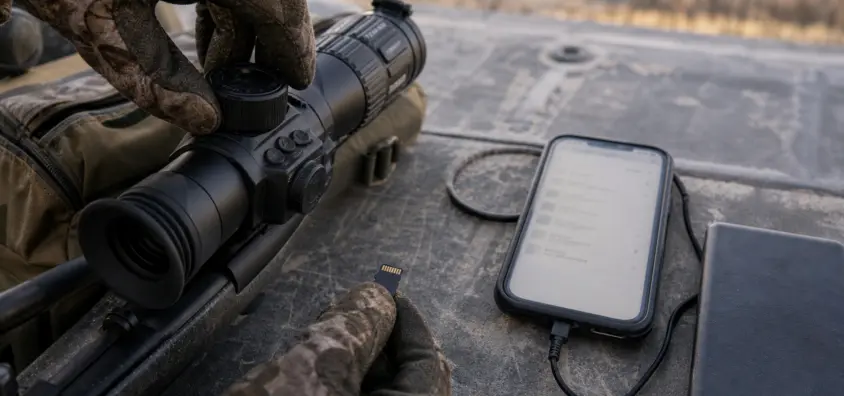
Many scopes record onto some internal storage or on to a card first and transfer to the app later. The fact that the app doesn’t display the latest clip doesn’t necessarily mean that the clip is gone. Test playback on scope or examine storage using the model specific playback method prior to deletion of any data.
The phone displays an outdated or partial list of files.
There are several reasons why thermal scope app not showing videos, such as outdated file list, weak Wi-Fi signal quality, missing app permissions, phone storage space, and being connected to the wrong network. Don’t open and close the app until the rifle is safe. Then reconnect deliberately. When connecting to the app itself is a problem, check out NV Guide USA’s guide to thermal scope app, Wi-Fi and firmware connection problems.
The file that was saved in the machine when you checked the SD card
Thermal scope internal storage, thermal scope microSD card, and some scopes may offer various storage options. When asked "How can I know if my thermal scope recorded internally or to SD card?" there is none of guesswork. See manual, storage setting, and actual model file browser.
The clip is not playing on the phone/computer but it is playing on the scope.
If the clip plays on the scope, keep this original file. If a thermal scope file fails to be played on a phone or computer, the cause of this may be a player problem, codec problem, transfer problem, filename problem or folder problem and not a corrupt thermal scope file.
Storage Problems: SD Card, Internal Memory and File Closure
The most prevalent boring reason a recording fails is storage.
Card capacity, speed or format is not supported.
Thermal scope SD card issues may be caused by using a card capacity, format or speed class that the manufacturer does not support. Another actual cause of failure is cheap counterfeit cards. Never assume that a card will work due to the computer being able to see it. The scope must be able to reliably write to it and recognize it and close files.
Full storage or too many old files
Clips may be shorter, the file list may act strangely or recording may not work at all if the internal storage space is full or nearly full, or if the card is full or near full. Once the important footage has been backed up, make sure the storage doesn’t get cluttered so that the scope isn’t attempting to save a shot clip into the last available space.
Removing a power card or removing the power from a card prior to closing the file.
Often corrupted after shooting, a thermal scope video file is due to interruption. Battery runs down, scope turns off, card gets removed, people just turn off the hunter too quickly, or the battery dies. Video time is required for finalizing. Wait for the saving sign or if the device is still writing, do not pull the power cord to stop it.
When footage matters, formatting is not the first step.
If hunt footage is missing, do I need to format my thermal scope SD card. Not first. Do not alter the original file/card until the existence of the clip, the possibility of copying it and whether the original file/card is irretrievable have been confirmed. Formatting may be part of a controlled fix later. It is not the first play, if there’s still a copy on the card.
Controlled Storage Test at Home: How to do it
Before the next hunt, try this easy test:
- Charge the scope.
- Put in the supported card and/or verify internal storage.
- Check free space.
- Make a brief demonstration of a manual clip.
- Stop recording and wait for the file to close.
- If possible, play it back on the scope.
- Make a separate transfer to the phone or computer.
- Do this once again after turning the scope off and on again.
Don’t trust what doesn’t work at home at a stand.
Recoil-Activated Video Not Working
Recoil Video when it works is good, but it is not magic. When a RAV thermal scope does not work it should be tested separately from manual recording.
This is because RAV is disabled, reset or belongs to the wrong profile.
Sometimes RAV is off after firmware updates, resets, or application or profile changes, and it may be configured to a setup different from the one you want. Check the active rifle profile, recording mode, and RAV setting. If you are able to record manually, but not via RAV, you have identified a portion of the issue to narrow it down.
Suppressors, light calibers, heavy rifles, rests and tripods can minimize the recoil impulse
How come my thermal scope RAV isn’t working? Instead, the scope sometimes doesn’t feel recoil like it does on a different rifle. The impulse can change based on suppressors, lighter calibers, heavy rifles, semi auto actions, lead sleds, tight tripods and various shooting rests.
That is relevant to those who complain that ATN recoil activated video doesn’t work and to other brands with similar functionality. Always assume brand name is an example, not a guarantee.
The sensitivity setting and behavior of RAVs varies by model.
Some scopes can have RAV sensitivity settings or the like. Others may not. A few systems might record a pre-shot buffer – others may work differently. Don’t expect your Pulsar thermal scope video recording workflow to be the same as another model, nor your AGM thermal scope recording issues, or InfiRay thermal scope video not saving symptom, or HIKMICRO thermal scope recording behavior.
The following is a safe way to test RAV using your actual rifle setup.
Always shoot RAV in safe, legal and suitable locations for testing. Use the REAL rifle, mount, suppressor state, ammunition type, rest and profile you hunt with. Next, verify that the clip was saved, and it plays back. Dry Menu Check is not the same as recoil test.
Manual Recording Mistakes in Real Hunting Conditions
In some cases the hardware would do what it was programmed to do. It’s just that the hunter never began to record.
When animals are moving, not pressing the record button.
While the animals are in motion, your brain is dealing with wind, distance, target ID, backstop, safety, communication and the shot. It’s normal to forget to press a record button. Make a habit of starting to write before the fun begins.
Avoid gloves, cold hands, confusing button positions and menu items.
Small buttons feel different in cold hands and gloves. Spend time getting to know the record control by touch in the same gloves that you hunt in. Know how to record without the app in case you need it to start recording.
It does not necessarily mean that a clip is a technical failure if it begins after the shot. This could be a timing issue. Record when a stand starts to develop, rather than when an animal is in a reticle. Wait until the file has had time to save before stopping.
App, Wi-Fi, and Transfer Issues that Mimic Video Loss
Thermal scope video transfer not working is completely different from the recording failure.
The scope recorded but the app didn’t sync
The recording should be successful if the clip plays on the scope. You are now troubleshooting the app, path, permission or phone storage.
During transfer, Wi-Fi has been lost.
When a connection is lost, a phone copy may be incomplete but the original copy will be available. Don’t take a poor transfer as a measure of the original. Copy again in a stable environment.
App permissions, phone storage and low-power mode.
Local network access or other permissions, such as photos, background activity or downloads, may be denied on the phone OS. Transfers can also be affected by low power mode. Test these at home, NOT in animals’ presence.
App transfer should be tested prior to hunting for several reasons.
Test the entire route before leaving: scope records the footage, file saves, app connects to it, phone plays it if it has to be shared or reviewed. You don’t want to find out your app requires permissions or your phone has insufficient storage space during a hunt.
Battery, Cold Weather, and Firmware Causes
Stressing the system more than just viewing it is a good way to record.
Low voltage on save/transfer.
Symptoms of thermal scope low battery recording include short clips, failed saves, app dropouts, shut down, or corrupted files. If battery is low, then all of the other diagnosis comes into question.
Cold batteries and power sag
Does cold weather inhibit thermal scope video recording? It can contribute. Cold batteries might charge up but droop under load such as when recording, using Wi-Fi, streaming or transferring files. Read more about NV Guide USA’s guide on thermal scope battery life, internal vs removable battery, power banks and cold weather.
Firmware changes impacting on recording behaviour.
An issue in the thermal scope firmware might manifest after an update, application change, reset or new storage behavior. Firmware may impact recording menus, app pairing, file management, RAV settings, and stability. NV Guide USA’s thermal scope firmware update guide includes the safe update mindset.
When a firmware update is advisable and when it’s not.
Update as soon as release notes or support documentation are aligned with a real symptom you have, and you have time to test afterwards. Don’t install some unapproved firmware, random recovery files or a rushed update in the truck prior to a hunt.
Corrupted, Short, or Unplayable Thermal Video Files
The careful handling of a thermal scope video that has been transferred is required when the video will not play or has been lost.
File was not finalized before shutdown.
In the event of a power loss or an improperly removed card, the file may be incomplete. Cease altering the storage until it is preserved.
There are two scenarios to consider: Interrupted transfer and Corrupted original file.
A poor copy does not indicate that the original copy is poor. Test file to see if the file will still play on scope or if it can be re-copied from original storage.
The specified player, codec, or file location is incorrect.
Some computers and phones have trouble with some of the files. Use a tested player first and make sure that you are opening the correct folder before saying that the file is corrupted.
There is a time to stop troubleshooting and to preserve the original file:
Stop experimenting once you think the clip is corrupted, if it is important to review a shot. Try and save the card, or internal file, in the supported access method, and contact manufacturer support or a competent recovery method if necessary.
Brand-Specific Notes Without Overclaiming
It is important to have the brands but more important to have the exact model.
Use ATN / Obsidian and RAV workflows.
ATN searches are also known to be associated with ATN recoil activated video not working, often in relation to RAV workflows. However, it’s a function of model, firmware, setting, recoil impulse and storage. Follow the precise manual.
In Pulsar / Stream Vision, behavior should be recorded manually.
Pulsar thermal scope video recording can be model specific onboard control and Stream Vision app behavior. Unlink the saved file on the scope from the phone transfer.
Ecosystems such as AGM, InfiRay/iRayUSA, HIKMICRO, RIX and others contain applications.
There are different storage and app causes for AGM thermal scope recording problems, InfiRay thermal scope video not saving, HIKMICRO thermal scope recording issues, and so on RIX or Sightmark complaints. Never take a menu path from another brand and assume that it is the same.
When using the support, you must use the correct model manual and instructions.
Support will require model, serial if requested, firmware version, app version, storage details, battery type and the exact symptom. That information is more helpful than "it did not save."
Field Troubleshooting Order
To begin, check that the scope image and controls are functioning.
If the image, reticle, menus and buttons are not stable, resolve that issue first.
Step 2: Review storage recognition and free space.
Check internal storage/card path/free space/card recognition.
Step 3 – Capture a brief manual test video clip
Manual recording is the most pure baseline.
Before using the app, play it back on the scope.
This means that recording and transfer are no longer one.
Test the transfer separately.
Now test app, Wi-Fi, cable, storage and playback for phones.
When you have finished the recording, check RAV without the manual method.
Manual works and if RAV fails, concentrate on RAV setting, profile, sensitivity, recoil impulse and model behavior.
After you make the changes, you need to verify that the battery, firmware, and profile are correct.
Maintain regular power and check settings after resets and/or updates.
Reach out to support providing the exact model, firmware, storage and symptoms.
Provide facts to support the giving of support: What does / doesn’t work, manual recording vs. RAV vs. playback on scope, what storage is being used, battery, temperature, firmware, app version, and repeat of issue.
Pre-Hunt Recording Reliability Checklist
Prior to any hunt in which footage is an issue:
- Charge the scope, phone and spare power.
- Verify rifle profile and zero is good.
- Check recording mode, RAV setting, internal storage/microSD card and free space.
- Create and view a brief test video.
- Test app transfer prior to hunt and not during it.
- Test RAV in a safe and legal manner.
- Disconnect from Wi-Fi when not necessary.
- Understand how to hunt and log without the application.
- Avoid deleting, formatting, updating or resetting without backing up important footage first.
If the saved file is poor but the recording is good, then check the focus, NUC, weather, palette, gain, and digital zoom and display setting as the next steps in diagnosis. That’s where NV Guide USA’s thermal scope image quality problems guide comes in.
Quick FAQ
My thermal scope recorded, but did not save the video.
It could be due to full or unsupported storage, a low battery, shutdown before closing the file, card removal, firmware/app behavior, or the clip saving to other than the expected storage location.
The reason why the recoil activated video isn’t working on my thermal scope?
RAV could be off, on another profile, influenced by the sensitivity or not picking up the recoil impulse from the actual rifle setup. The feel of the scope can be altered by suppressors, light calibers, heavy rifles, semi auto actions, rests and tripods.
Will a faulty SD card prevent thermal video recording?
Yes. Thermal scope SD card issues, save failures, short clips or corrupted files may occur due to a bad, fake, unsupported, full, improperly formatted, or poorly seated SD card.
You may find that the file is visible on the scope but not in the app.
You may not have synced the app, the Wi-Fi connection may have failed, permissions may not have been granted, there may be insufficient storage, or the app may be displaying outdated lists of files. If the scope plays the clip, save the original and transfer troubleshooting will be done separately.
If you have issues with recording, should you update firmware?
When the official release notes/support guidance aligns with your symptoms, and when you have the time to test afterwards. It’s more important to have a stable power and correct model files and saved set-ups, rather than rushing an update.
If I don’t have any hunt footage on the SD card is it best to format it?
Not first. Keep the card and original files if the footage is important until it is determined if the clip still exists or if it’s unrecoverable. Formatting may be helpful at a later stage for a clean test but may also wipe out the only copy.
IR Illuminator Not Working With Night Vision? Beam, Battery, Focus and Compatibility Check.
Is your NV not turning on? Battery, Contacts, Mount and Tube-Safe Troubleshooting
Night Vision Collimation and Alignment: Fix Double Vision, Eye Strain and Dual-Tube Setup Issues