
June 25, 2026
Thermal Scope App Won’t Connect: Wi-Fi Pairing, Firmware, and Field Troubleshooting
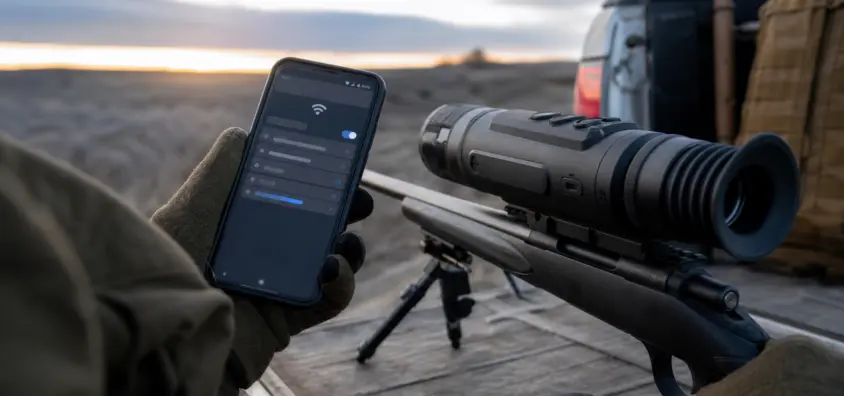
The rule of thumb for a thermal scope app failing is that it always happens when the coyotes are in motion and the hunter is in a blind or near a truck with gloves on. The cell phone detects a Wi-Fi network, the app states No Device Found, and the scope owner begins to suspect that something is wrong with the scope’s optic.
Slow down. If you are having a problem with thermal scope app not connecting, that does not necessarily indicate that the scope is faulty. The optic might still turn on, display a viable image, maintain a zero reading and perform the critical task. Typically, the app is used to assist with live view, recording, video transfer, firmware or settings. Treat it that way.
This guide provides a field-practical troubleshooting sequence for hunters who use Pulsar, ATN, AGM, InfiRay/iRayUSA, HIKMICRO, Sightmark and other types of thermal optics. Check out more ownership guides on Thermal Scopes & Imaging.
The Short Version
Before changing all the settings:
- First make sure that the thermal scope itself is functioning properly before you start troubleshooting the app.
- Put the rifle in a safe condition before handling the phone, menus, cables, or storage.
- Enable Wi-Fi/wireless on the optic as well as the phone.
- Connect the phone to the scope’s Wi-Fi when the app asks to connect directly with the device’s Wi-Fi.
- Ignore "no internet" warnings only when the manual calls for a connection from the scope to the phone.
- Download the official app for the specific device family.
- Only update apps from App Store or Google Play.
- Match the app version, firmware version, phone OS and exact model.
- When testing, turn off VPN, private relay, aggressive mobile data switching, and battery saver.
- Test recording, video transfer and firmware at home before the hunt.
- If firmware fails or the scope freezes or if official reset procedures don’t restore the connection, call support.
First: Separate Scope Failure From App Failure
Always ask if the scope is functioning correctly.
The Scope Works, But the App Does Not Connect
If it powers on, shows an image, responds to buttons, and stays running, you probably have an app, phone or Wi-Fi problem. There might still be ways to hunt safely without app features.
When the scope does not turn on, freezes or shuts down, begin with power first. NV Guide USA has a separate guide for a thermal scope that won’t turn on or keeps shutting off.
The Phone Connects to Wi-Fi, But the App Cannot Find the Scope
Phone-level Wi-Fi connections are different from app-level device recognition. While the app doesn’t have local network permission, location permission, storage access, or support for your phone’s model, your phone may join the scope hotspot. Hence, the thermal scope app troubleshooting includes both the optic menu as well as the phone settings.
The App Connects, Then Drops During Recording or Transfer
When the app is connected and then drops, check wireless interference, app restrictions, battery load, distance, phone sleep settings, storage, and firmware mismatch. If it is only when recording, compare it with our guide on thermal scope video recording.
Understand How Thermal Scope Apps Usually Connect
The majority of the issues with thermal scope Wi-Fi not connecting begin by the connection type.
Direct Device Wi-Fi vs. Internet Wi-Fi
Many thermal imaging devices have their own Wi-Fi network. The phone is wired straight into the optic, not into the router or the internet. In that configuration "no internet connection" might be normal. The issue is that phones may go outside of the network without internet connection. If the phone reverts to cellular data, truck Wi-Fi or home Wi-Fi, the phone may lose the device even though the scope is broadcasting correctly in the thermal scope Wi-Fi app.
Bluetooth, Wi-Fi, USB, and App Control Are Not the Same
Don’t ever think one connection is a substitute for another. Some optics use phone permissions for discovery, Wi-Fi for live view and transfer, and USB, memory cards, or app workflows for firmware. Do not use a forum shortcut, always use the official manual.
Why It Works at Home But Fails in the Field
Everywhere at home is warm, everything is charged, and it is easy to handle. Real thermal scope Wi-Fi field problems are those caused by gloves, cold batteries, low phone charge, standby modes and metal blind windows in the field.
Basic Connection Checklist Before Changing Settings
Start here.
Use the Official App for the Exact Device Family
Use the current official app of your optic family: Pulsar Stream Vision or Stream Vision 2, ATN Obsidian apps, AGM Connect, InfiRayOutdoor/InfiRayOutdoor2, HIKMICRO Sight or the current official app of the manufacturer. The names of applications and model support may vary. Don’t assume that one brand of app will work with another brand scope.
Turn On Wi-Fi on the Optic
In many scopes, Wi-Fi, hotspot or wireless mode must be turned on in the scope menu. Just enabling Wi-Fi on the phone isn’t sufficient.
Choose the Scope Network Manually
Open up the phone’s Wi-Fi settings and select the scope network. The name can contain the brand, the model or the serial digits. During the test phase, if the phone keeps connecting to another saved network, disable automatic connection.
Check Passwords and Pairing Codes
Thermal scope Wi-Fi password is unique to each brand and model and could have been altered by the previous owner. Utilize manual, app prompt, or official support. Never use universal passwords or reset combinations found in forums.
Reopen the App After Wi-Fi Connection
If the thermal scope app won’t find device, close the app, check if the phone is still on scope Wi-Fi and then reopen or refresh the official app.
Phone Settings That Frequently Disconnect You
There are a lot of false optic problems caused by phones.
"No Internet" and Auto-Switching
If the manual requires a direct device Wi-Fi connection, "no internet" might be okay. Review Wi-Fi assist, smart network switching, adaptive connectivity, mobile data switching and auto-join. During testing the phone must remain locked onto the scope network.
VPN, Private Relay, Firewall, and Security Apps
Local discovery may be affected by using a VPN, private relay options, firewall applications or security filters. Deactivate them during a controlled test.
Permissions
The location, Bluetooth, local network, photos and storage permissions may have an impact on discovery or saving media, depending on the app and OS. Only allow access for the official app.
Battery Saver and Background Restrictions
Low power modes can cause interruptions in streaming and transfers. If the thermal scope app keeps disconnecting try using a phone battery saver off, the app in the foreground and screen sleep delayed. Battery life is a consideration as well; Wi-Fi, recording, brightness, and streaming all drain battery. Check out thermal scope battery life.
Distance, Case, and Body Position
Don’t leave the phone far away while setting it up. A stable stream cannot be found in a coat pocket, truck console or behind metal framing.
App, Firmware, and Model Compatibility
Firmware is not a field quick patch.
Versions Must Match the Support Workflow
Another application, with old firmware, or an old application with new firmware, can cause connection issues. OS updates for phones can, too. Get the app version, firmware version, phone model, OS version and exact optic model prior to support. Follow our checklist of thermal scope settings after working with the firmware and checking key settings and profiles.
Do Firmware at Home
Resolve thermal scope firmware update issues at home on full batteries, with official files, stable cables or storage cards and time to test. Don’t update firmware in a truck just prior to a hunt unless the manufacturer says it is needed.
Avoid Random Reset Codes
Avoid reset codes, recovery files and button combinations from strangers online. Brand-specific recovery is from official manuals or support. When changing the firmware, if the thermal scope changes the profile or zero-related parameters, check zero at the range; thermal scope losing zero explains why it’s important to discipline the profile.
Video Transfer and Recording Problems
You don’t get a successful recording when using an app.
Connection Is Only One Part of Recording
If the problem is that thermal scope video transfer not working, try separate recording. Everything from internal memory to removable cards, recoil-activated video, file closure, battery level and permissions make a difference. Record a short clip at home, check its location and transfer it.
Why Are Files Disappearing or Failing?
This can be caused by full storage, by an unsupported card, low battery power while saving, incomplete transfer, app cache issues and by checking the phone files when the clip is still on the device. If the video is not good it could be due to focus, NUC, gain, contrast, humidity, or weather. Check out thermal scope image quality problems.
Keep Rifle Safety Ahead of Footage
Recording is secondary. The first is target identification, the second is backstop, muzzle direction and trigger discipline.
Brand-Specific Notes Without Overclaiming
Product names are for identification purposes only. Check the latest official manual or support webpage for your model.
Pulsar / Stream Vision
In the case of Pulsar Stream Vision not connecting, there are some general support suggestions that are given to the user: enable device Wi-Fi, use the correct Stream Vision app, check Wi-Fi password, allow required phone permissions (GPS/location, if applicable), keep the phone close, and repeat the connection procedure.
ATN / Obsidian
If ATN Obsidian app isn’t connecting, think of app version, firmware, storage card and model generation as connected. Avoid taking steps from another generation unless stated by ATN.
AGM / AGM Connect
Use the official AGM manual or support downloads for the specific model of the AGM for troubleshooting AGM Connect app troubleshooting. Each line has a different behaviour and firmware.
InfiRay / iRayUSA / InfiRay Outdoor
Check if your model requires phone to device Wi-Fi, device hotspot mode or Wi-Fi switch between internet access and device Wi-Fi for app/firmware operations for InfiRay Outdoor app connection.
HIKMICRO and Other Brands
Media export or settings may be available on compatible models through an official app like HIKMICRO Sight that can be connected via a device hotspot.
Field Troubleshooting Order
It is used when a thermal scope won’t connect to phone, in this order:
- Put the rifle in a safe condition.
- Check that the scope turns on and the picture shows when the app is turned off.
- Charge the phone and scope; turn off low power mode.
- Turn on Wi-Fi or wireless on the scope.
- Manually connect the phone with scope Wi-Fi.
- Only ignore No Internet if the manual requires direct device Wi-Fi.
- After Wi-Fi connection open or refresh the official app.
- Check app permissions.
- Disable VPN, Private Relay, or security filtering temporarily.
- Test using Wi-Fi only and tweak mobile-data switching as necessary.
- Restart the app and then phone and then scope.
- Transfer and test a short recording at home.
- Check for compatibility of model, phone OS, app version and firmware version.
- If firmware failure, freeze, repeated disconnects or failed official reset steps remain, contact official support.
When to Stop Troubleshooting and Call Support
Say goodbye to guessing games when the firmware update fails, the scope won’t start, the app won’t detect the scope after following the official procedure, the scope freezes up, the scope has lost its settings, the scope works with one phone but not with another or the video files are corrupted. Provide support with: brand, exact model, serial number, firmware version, app version, phone model, OS, what the phone sees, what the app sees and what official steps were taken.
Pre-Hunt App Connection Routine
Double check and try the app at home using your phone. Create a brief test clip, save, locate and transfer. During the hunt, disable any unnecessary Wi-Fi and app features to conserve battery power. Be able to use the scope manually in case the app doesn’t work. Routine care helps too; check out how to clean and maintain a thermal scope.
Quick FAQ
Why does my phone say the thermal scope Wi-Fi has no internet?
A number of scopes form an ad-hoc, local, wireless network without Internet. The warning is normal if the manual indicates direct device Wi-Fi.
Why can my phone connect to the scope Wi-Fi but the app cannot find it?
The app may not have permissions, require restarting, be the wrong app or be blocked by VPN, security filtering, battery saver or switching phone networks.
Does Wi-Fi affect battery life of the thermal scope?
Yes. For things like Wi-Fi, streaming, recording, high brightness, cold weather, and external devices, they all add draw.
Should I update thermal scope firmware before going out on a hunt?
Only after time to test. Firmware updates go at home with full batteries and official files.
Why does my thermal scope app disconnect while recording?
It can be caused by low battery, phone sleep, poor Wi-Fi location, storage problem, firmware-app mismatch, app restrictions or a power outage.
Can I still hunt if the thermal scope app is not working?
Yes, provided the optic is functioning properly, target identification is correct, and the rifle is in good working order.
Final Field Rule
This app is not the optic. If the scope is functioning properly, the rifle is safe, and target identification is good, then you can wait on the app features. If the app controls firmware, media transfer or important settings, try it at home, make a clear documentation of the failure and use official model-specific support.
IR Illuminator Not Working With Night Vision? Beam, Battery, Focus and Compatibility Check.
Is your NV not turning on? Battery, Contacts, Mount and Tube-Safe Troubleshooting
Night Vision Collimation and Alignment: Fix Double Vision, Eye Strain and Dual-Tube Setup Issues