
July 1, 2026
Safe and secure Thermal Scope Firmware Updating Methods
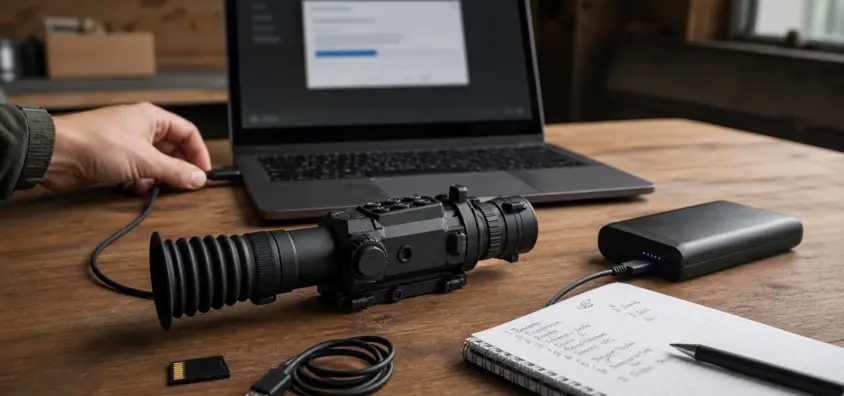
Upgrading the firmware in a thermal scope safely can be done in a variety of ways, including apps, zero profiles and field checks.
Thermal scope firmware update is able to resolve actual issues. It might enhance app compatibility, recording behavior, menu stability, image processing, battery management or anything that is important to a hunter that uses the optic hard.
It may also cause mess when quickly carried out.
I don’t think of firmware as a regular phone update. A thermal scope is attached to the rifle, bound to zero, and shot in low light conditions around livestock, property lines, hogs, coyotes and other hunters. When the scope requests an update 10 minutes prior to a hunt, “tap update and hope” is rarely the correct response.
This guide will show you how to update thermal scope firmware with safety, how to prepare the optic, what to record before touching anything, and what to check after to ensure that you can trust the scope again. It can be used in a brand independent manner for ATN, Pulsar, AGM, InfiRay/iRay, Sightmark, HIKMICRO and other thermal optics. Always refer to the official instructions of the model in question.
The Short Version
Avoid applying a non-urgent firmware update in the truck immediately before hunting unless the manufacturer explicitly states that the update is necessary for a critical safety, reliability or support problem.
Perform at home or on a controlled bench with:
- Fully charged scope battery and charged phone/computer
- Official firmware and instructions for the exact model number
- A secure WiFi/USB/SD card or internal-storage update mechanism
- Time to allow the update to complete without interruption
- Recorded zero profiles, reticle settings and other critical menu settings, through writing or photography, etc.
- Unloaded, pointed in a safe direction, or with the optic removed (where applicable)
- Time after to check menus, app connection, recording, image settings, active profile, zero
If your scope has been already experiencing serious power issues, freezes up or it does not work with the app, troubleshoot for that first. NV Guide USA has a separate guide for thermal scope not connecting, thermal scope freezing or lagging, and a thermal scope that won’t turn on and keeps shutting off.
What a Thermal Scope Firmware Update Actually Does
The operating software which is housed within the scope is referred to as firmware. Thermal scope firmware can manage menus, buttons, image processing, NUC behavior, recording, Wi-Fi, app pairing, reticles, ballistic functionality, zero profiles, rangefinder integration, and general device stability.
This is where firmware can come into play. It’s also why it deserves respect. You’re not simply tweaking a cosmetic option. When a firmware update is installed on some optics, the menu configuration, the names of the functions, the handling of the files, the behaviour of the apps, the names of the profiles or the display of the saved profiles after restarting the device may be modified.
Firmware is not equal to the phone software.
Separate these items:
- Scope firmware: firmware that is embedded within the optic
- Mobile app version = software on the phone
- Wi-Fi OR Bluetooth connection: the connectivity between phone and optic
- Downloaded update package: the file that is transferred or installed
- Login, sign up, or update delivery layer in a manufacturer account and/or cloud system
A thermal scope app update can resolve issues in the app on the phone itself without altering the scope. Firmware update alters the optic itself. A phone can also be connected to the scope WiFi without the app detecting the phone. If that is the symptom then check it against NV Guide USA’s guide on thermal scope app not connecting before accusing it of firmware issues.
There are several reasons why different brands handle updates differently.
There is no standard universal update process.
ATN thermal firmware update may have a different workflow compared to Pulsar thermal firmware update. An AGM thermal firmware update might consist of a support download or model specific file. Depending on the specific product line, an InfiRay thermal firmware update might require different apps and storage. Also, there are different brands like Sightmark, HIKMICRO which are based on generation and model.
The most common update options are:
- Transfer via phone app over Wi-Fi, or Bluetooth discovery or pairing (where supported)
- USB cable and computer
- SD/Micro SD card
- Transfer files with internal storage
- Desktop utility
- Recovery with support or service process
Never combine directions from different brands or even from similar appearing models from the same brand.
Now comes the time to think about updating before a hunt, so is it a good idea?
Sometimes yes. Not always in the present.
To change is a good thing.
A firmware update makes sense, if the official release notes or the support team mentions a problem that you really have. Good reasons include:
- Freezing, lagging or stability bug fixes that are known and documented
- Fixes for app compatibility following phone OS or app changes
- Fixes for recording, transferring files or storing files.
- Battery/power-management improvements
- Rangefinder/ballistic/reticle improvements
- New features that you need and have time to test
- Manufacturer support asks you to update prior to further troubleshooting
If your scope freezes after doing some updates or if you are attempting to troubleshoot some freezes, read NV Guide USA’s article about thermal scope freezing or lagging to make sure you are not mistaken and attributing the freezing to a bad update when it is actually due to a normal NUC pause, cold battery behavior, recording load, or Wi-Fi lag.
When to Wait
Do not update if the update is not time-critical and:
- There is soon going to be a hunting trip you are going on
- Battery low
- You have little to no internet in the field
- Not possible to make zero after.
- You do not have the manual or official instructions
- You don’t know what model or what firmware file is being used on your device
- Scope appears to be functioning properly and release notes were not applicable to your use.
This is particularly true prior to a paid hunt or a small window of weather. It is better to use a working optic with known settings than a newly-updated optic that you have not checked.
Please read the Release Notes first!
Release notes let you know if the update is of significance. Find mentions of stability, app connectivity, recording, profiles, reticle behavior, ballistic calculators, or power management.
When notes are just adding a feature that I don’t need I normally wait until I have range time. When the notes release a fix to a bug I’m experiencing, I make the update on purpose and test it out afterwards.
Always use a Preparation Checklist before updating.
There are few thermal scope firmware update issues that can be prevented. The preparation isn’t complicated, though it must be completed before the scope’s halfway up on the update.
The battery should be charged and power stabilized.
Low voltage is a tried and tested update killer. Power internal battery, removable battery, phone, computer and approved external power source. If the optic has interchangeable batteries, use known good batteries. If it updates via USB-C, ensure that the cable is good and not floppy.
Cold batteries may display charge and yet sag when loaded. Faulty contacts, loose battery caps, low power in power banks, and charge-only cables can also cause fake firmware failures. When power problems occurs with the optic, resolve the power issue before upgrading.
Only use official firmware sources.
Check manufacturer support pages, official apps, official desktop tools or manufacturer support instructions. Avoid installing firmware from forums, file-sharing links, "old" model pages, random recovery folders, or someone saying "this worked on mine!".
Having the wrong file can cause a true problem with support. A button press from a similar model can be as bad.
Verify the actual model and current version of the firmware.
Prior to downloading anything, record:
- Type of product
- Hardware revision (if known)
- Serial number (for support purposes, if required)
- Current firmware version
- Current app version
- App used if any (phone model and operating system)
- Region or app family where applicable for a brand that segments by different regions or app families.
Two optics may be identical in appearance but may operate on different firmware. Do not guess.
Record or backup important configuration settings.
There are scopes that retain settings when they are upgraded. Don’t take that as a fact.
Backup a thermal scope’s settings – a quick and easy task, take photos or make notes of what you wouldn’t want to recreate.
Record:
- Names of the rifles and thermal scope zero profile names
- Zero distances
- Active profile before the update
- Style, colour and position related settings of reticle if displayed
- Ballistic data (if the scope offers these)
- Palette, brightness, contrast, gain, sharpness and NUC mode
- Wi-Fi name, password & pairing notes (if visible)
- Storage media recording and storage methods
- Units, date, time and language preferences, and display preferences
If you’re looking to make a more general discipline setting, you can consult NV Guide USA’s guide to thermal scope settings and zero profiles before you begin.
Make the Rifle Safe
Make the rifle safe before touching menus, phone screens, cables or cards. Unload it, ensure the muzzle is pointing in a safe direction, ensure that fingers are not on the trigger and remove the optic from the weapon, if possible.
The firmware is bench work. Don’t trouble shoot an electronic update with the rifle loaded.
The application can be updated in four ways: App, Wi-Fi, USB, and SD Card.
The correct way is the way that your manufacturer has specified for your specific model.
You can now update the device through a mobile app.
If it is an app-based update, make sure that the official phone app is updated from the App Store or Google Play. Then, follow the manufacturer flow. This might involve setting up scope Wi-Fi, discovering it via Bluetooth, signing up to a manufacturer’s account, or using a custom internet hotspot.
In thermal scope Wi-Fi update:
- Be sure to keep the scope and phone close by
- Maintain charging of both batteries.
- Turn off battery saver on phone while transferring
- Do not close the app while following the instructions (if asked)
- DO NOT allow phone to connect to a different wi-fi
- Disconnect VPN / private relay or turn off aggressive security filtering during controlled testing
When you are facing thermal scope app not updating issues, ensure that you are connected to the internet, app permissions are correct, there is enough storage space, you are logged in, and the phone is connected to the correct network at the right time.
You can update your unit via a computer or USB.
A thermal scope USB update may fail due to one of the following reasons: bad cable, charge-only cable, unstable computer port, computer asleep, file placement, or to an unsupported desktop utility.
Transfer and install using a data cable, do not turn the computer off or disconnect the cable during transfer or installation. If the scope is listed as storage, place the file precisely in the location indicated in the instructions. If the brand has a software, use the latest official software for the brand.
You can update it either via SD card or from internal storage.
When updating via SD card or internal storage, check the SD card type, format, available space, and file name. If directed to remove, delete old firmware files. Don’t leave multiple update packages on the card and trust that the scope will select the right package.
Use approved storage media, if required by the model. Don’t take chances with recording cards or firmware cards.
Mixing instructions between models is not acceptable.
One of the largest preventable errors. The names of the firmware files or folders, button combinations and recovery modes, or app workflows may vary across generations of the same model.
Use the manual or official support if it’s one thing in the manual and another in a forum.
Common issues with Firmware Updating:
The message "thermal scope update failed" does not necessarily imply that the optic is damaged. Go over the probable causes one by one.
In this case, the app cannot locate the scope.
Make sure the following settings are configured on the optic: Wireless mode is setup; phone is connected to the scope network if necessary; the app has permission to run; VPN is disabled and the app supports that particular model. Re-start the App, the phone, and the scope.
Phones may drop off of WiFi networks without internet. That warning may be normal if the scope has been configured to create its own network. Do not disconnect the phone from the scope network until the App is expecting it.
The update fails to download.
Typically, this is a phoneside, internetside or accountside. Test home wifi, storage, app logon, manufacturer servers (if known) and app version. Don’t continue to fire retries on weak field signal while rifle is in the truck.
The update will transfer but will not install.
Reasons may include: Incorrect firmware file, incorrect model, corrupted download, low battery, low storage, card format issue, faulty USB cable, or recovery requiring support. If the official instructions say it’s okay to delete and re-download, then do that. Repeat failures – stop and call support.
When the scope is updated, it will freeze during or after the update.
Never panic and never disconnect the power unless directed to do so by official instructions. Not all updates are instant. Follow manufacturer recovery steps or contact support if scope is stuck at a startup screen, boot loop or update screen.
Random hard resets can complicate the diagnosis of the problem.
The Scope is working but the settings are different.
Menus, labels, palettes and options for recording could change, and the names of profiles could change after an update. That doesn’t necessarily mean that the scope lost zero, but you will require a careful post-update check.
Will a Firmware Update have an impact on Zero?
It is the most important question for a hunting rifle.
The firmware should never move the scope.
Programs don’t change mounts, rails, barrel or ammunition. A firmware update is NOT a physical movement of the optic.
However, software may influence the operation of saved profiles, depending on the model. It can alter the selection of the active profile, the display of the zero coordinates, the reticle scaling, the behavior of the ballistic calculator, the names of profiles, the names of distance labels or the behavior of the restored defaults. Settings can also be erased or changed by a factory reset.
Hence the importance of paying more attention to thermal scope 0 after firmware update than simply a menu scan.
Why Hunters Should Still Confirm Zero
After any changes that impact profiles, reticles, ballistic functions, app syncing, factory reset behavior, and/or unknown setting, confirm zero. Also verify that it is zero when the scope was removed, batteries changed in a manner that necessitated rough handling, mounts were touched, or the rifle traveled hard.
If you don’t separate mount, profile, rifle and shooter variables, it can appear to be one problem, as NV Guide USA’s article thermal scope losing zero explains.
Before shooting, you need to verify the Active Profile.
PLEASE verify the rifle profile before live fire. A scope can start up with a default profile, a renamed profile, a previous profile, or in a different distance label. Always presume the last profile that you used is not the way that you remember.
Post-Update Field Check
Do this prior to the next real hunt.
First Boot and Menu Check
After reboot, confirm:
- Firmware version
- Battery status
- Date, time, units, language
- Screen brightness
- Palette
- NUC/calibration mode
- Style and visibility of reticle
- Active zero profile
- Recording/storage settings
- Connection to Wi-Fi and apps pairing status
If the scope appears to be without life or unstable, do not continue to hunt with that scope. Revert to power checks or official support.
Image Quality Check
Test for focus, diopter, NUC/calibration, gain, contrast, brightness, sharpness, palettes and digital zoom using a known scene. Firmware changes the image processing or the default menu settings, but bad image quality may be caused by focus error, thermal crossover, moisture, high digital zoom or bad settings.
Use NV Guide USA’s thermal NUC explained and overall settings guide (if necessary) before determining if the update was successful.
App and Recording Check
Reconnect the app. Try live view, file transfer, short recording, playback and storage. Do this at home, NOT after the shot. Video might be part of your normal setup, and NV Guide USA’s thermal scope video recording guide goes into more detail on the recording side.
Zero Confirmation
Set up a safe range and have a target that your thermal optic can see. Before touching the rifle as ready, confirm point of impact at your normal zero distance. To learn how to do it, refer to how to zero a thermal rifle scope and thermal targets for zeroing scope.
When to Contact Manufacturer Support
When the problem goes beyond the typical field troubleshooting, stop speculating.
Support-Worthy Symptoms
If you notice, please reach out to official support with the following:
- Repeated failed updates
- Boot loops
- Startup or update screen is frozen (freezes on startup or update screen)
- No serial, model or firmware information provided
- Unsuccessful official recovery attempts
- Restarts the app multiple times on several phones
- Lost profiles due to following official instructions
- Restrict behavior which may lead to unsafe use
- Failure to write file system
- Exposure to water, battery leakage, burnt odor or visible corrosion.
Avoid using unofficial thermal scope firmware reset instructions (unless directed to do so by support).
What Information to Send
Effective note-taking reduces the support conversation. Send:
- Make and model
- Serial number (comfortable as applicable)
- If the firmware version is known, before and after the event.
- App version
- If app-based, model of the phone being used and computer operating system.
- Battery Type & Level
- Available update methods: app, Wi-Fi, USB, SD card, internal storage and desktop utility.
- Exact error message
- Photo or video (if it is safe to do so)
- Steps already tried
The following tips will help you avoid some of the most frequent errors:
Updating in the Field with a Weak Battery
This is the old fashioned avoidable failure. Stable power and time are required for firmware work.
Ignoring Release Notes
Release notes will indicate if the update is applicable. If the "Update" doesn’t resolve your issue, then set it for a controlled day.
Do not use the wrong firmware file.
The issue of model mismatch can result in larger issues than the original bug. Please check the model number before downloading.
Suppose that Zero is still confirmed.
“Profile preserved” does not take the place of live zero confirmation if the hunt requires it.
Reset the factory settings too early.
Resetting will lose any useful clues and settings. If official instructions or support indicate it, when you reset, do so in case the settings you might need to rebuild are stored.
Firmware Update Checklist: Practical Steps
Before and after an update use this thermal scope field checklist:
- Ensure the rifle is safe or remove the optic if possible.
- Determine the model and firmware version.
- Go through the official release notes.
- Charge Scope, Phone, Computer and Approved Power Source.
- If the official workflow requires, update the phone app.
- Zero profiles, rifle names, reticle, ballistic values, Wi-Fi and image settings.
- Only use official firmware files and instructions.
- Do not remove the power or move the device during the update.
- Check the firmware version after reboot.
- Review profile, reticle, image settings, app connection and recording and storage.
- Check for a safe thermal target before hunting for 0.
- If update failure occurs again contact support.
Final Verdict
A thermal scope can be enhanced by means of firmware updates. They can resolve glitches, enhance application performance, correct recording problems, and introduce beneficial functions. However, they are not to be confused with tapping ‘update all’ on a phone, but rather maintenance for a hunting optic.
Plan the update. Use official files. Keep power stable. Record your settings. Put rifle away safely. Check the application, the image, the recording, the profile and the zero before the first "real hunt".
The difference between a valuable step in thermal scope firmware troubleshooting and a self-created problem the night before the coyotes start moving.
IR Illuminator Not Working With Night Vision? Beam, Battery, Focus and Compatibility Check.
Is your NV not turning on? Battery, Contacts, Mount and Tube-Safe Troubleshooting
Night Vision Collimation and Alignment: Fix Double Vision, Eye Strain and Dual-Tube Setup Issues