
July 7, 2026
Is the Thermal Scope SD Card Not Recognized? MicroSD formatting, Storage, and File Fixes Prior to Hunt
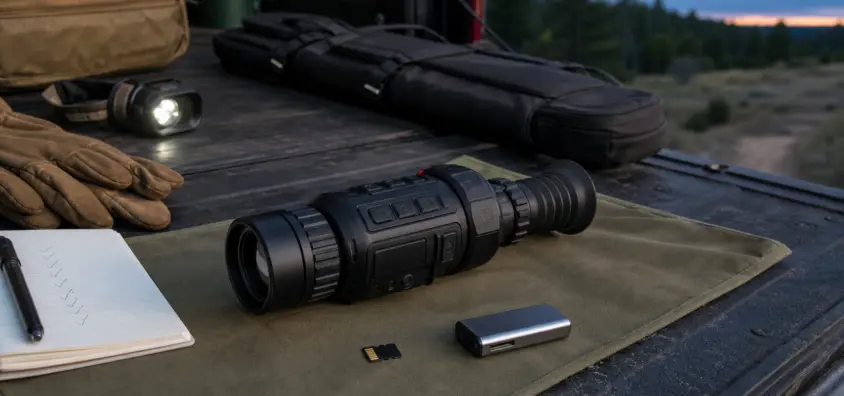
The thermal scope SD card not recognized error typically appears when you are least expecting it—just before a hunt, attempting to take a shot, or loading a firmware file you hoped would remedy another issue. The most common error I see is that people try to format/swap/updates/reset without separating the real failure.
There can be multiple storage issues with a thermal optic that are indistinguishable in the field. The card might not be detected by the scope. May recognize the card but won’t record. It can log to the internal storage, not the card. This means that the file can be on the scope, but not appear in the phone application. Or it’s just that the card is okay, and the optic is having some power, firmware or menu problems.
This guide maintains the order of practicality: make the rifle safe, save any footage that may be relevant, check compatibility, format only if relevant, and know when the problem has become a support rather than card problem.
The Short Version: What to Check First
Before operating the rifle, make sure to put the rifle down and in safe condition.
Make the rifle safe before opening a card door, connecting USB, pairing a phone or scrolling through menus. Unload it, check the chamber and if it has a magazine, take it out and keep the muzzle in a safe direction. Remember, it’s range handling, not casual electronics work, when using the optic on a rifle.
Once that is done, power down the optic before removing or reseating a thermal scope microSD card (unless specified in the exact model manual). The next problem can be an unwanted corrupted video if a card is hot-removed while the scope is writing a file.
If footage is important, don’t format the card first.
Formatting can be helpful but it can also be harmful. Do not format the card right away if it has the potential of hunt footage, zeroing clips, screenshots or a firmware log. Make sure to copy the card contents to a computer prior to making changes. If the corrupted video file from a thermal scope is important, refrain from writing more data to the card, and try recovery before conducting additional testing.
Isolate card recognition, recording, playback and card transfer issues.
There are four possible points of origin for a storage complaint:
- The scope does not detect the card.
- The scope can view the card, but it will not record video.
- Video does not show up in the phone video app but does show up on the scope.
- The card is functional on the computer, but it will not operate in the optic.
These are other failures. It will be a waste of time and will wipe out valuable clues if all of them are treated as “bad SD card”.
However, is the SD Card really the issue?
The scope is unable to detect the card whatsoever.
If the thermal scope not detecting SD card message has come up straight away, it is best to begin at the beginning. Check the card is properly inserted, that the card door is closed and that the contacts are clean and dry. Check for a card icon, storage menu or recording setting that indicates the optic is able to see removable storage.
Assume that if the same card is detected by a laptop and not the scope it means that the card is not suitable for that scope. Computers are a lot more forgiving than embedded devices in optics. A laptop may read a card that is too big, formatted with a type of file system the scope firmware does not like, or constructed in a manner that the scope firmware does not accept.
The scope is unable to record to the card.
A thermal scope memory card not working complaint may indicate the optic is identifying the card, but isn’t writing video to the card. Look for space, recording resolution, clip length settings and storage path. Depending on which scope you use, it can be onboard storage, microSD, or some vary from model to model or depend on the generation the scope was made in.
If your problem is primarily that you’re missing recordings, you can check out this guide and read about the Thermal Scope Video Not Saving issue on NV Guide USA’s blog here. Overlap is true, but storage layer needs its own checks.
The scope records however the app or computer cannot locate the file.
If playback is possible on the scope then it may not be a problem with the card. The file could reside in a random location, inside a manufacturer-specific folder, in a format that takes a long time for the phone app to index, or be denied by phone permissions. First try the clip on the optic, and then connect by the method recommended in the manual.
NV Guide USA has written a guide about thermal scope video recording for broader recording setup and pre-hunt clip testing.
The card is operating in the computer, but it is not operating in the optic.
This is common. A computer is able to support SDHC, SDXC, exFAT, FAT32, large partitions, odd allocation sizes and cards that have been used on multiple machines. A thermal scope would be expecting a tighter setup. If the thermal scope SD card format is not supported by that model, then it just means the SD card is readable in some computer.
Capacity, Speed Class and Card Type specify the compatibility of the card.
Note: Manufacturer limits are more important than computer compatibility.
The top SD card for thermal scope usage is not the largest card that is available. It is the card that fits exactly the capacity, speed and format requirements of the model. Look at the exact model manual, don’t just refer to the brand website or a forum post regarding a similar looking optic.
Different brands have different storage methods in different models: ATN, Pulsar, AGM, HIKMICRO, Sightmark, InfiRay/iRay, RIX, etc. One thermal scope card may not work in another thermal scope, even from the same brand.
There is much confusion between SDHC, SDXC, microSD and adapters.
Some optics use a microSD card, while some users access files using a full-size SD adapter. The adaptor is simply a link between your computer and the card, and will not alter the compatibility of the card with the optic.
Even the capacity class is a factor. Embedded devices do not necessarily handle SDHC cards or SDXC cards the same. If there is a stated maximum capacity or required file system, follow the instructions. If the larger card isn’t supported, the symptom might be “no card,” failure to record, or random freezing.
There are reasons why cheap or counterfeit cards will cause strange field failures.
There are some cards that pass a quick desktop check but fail in repeated video writes due to counterfeiting or poor quality. Common issues with thermal scope recording include short recordings, missing ones, slow menus, or recordings that just end with no warning. Spend on a good card from a good seller and make sure that everything works in practice before relying upon it in practice.
Many thermal scope cameras require microSD cards, and class 10 is a standard. Some cards get worn out, some of them are fake and some are optimized for different workloads. The marketing figures don’t mean much if the optic is able to record video at high bit rates.
Larger cards are not always better.
Though a 256 GB or 512 GB card might be handy in a camera, it’s certainly not the right choice for a thermal optic. With larger cards, SDXC formatting, longer indexing times and unsupported capacity issues can be a problem. If the manual specifies a smaller card use this for diagnosis first. The cleanest test you can perform is using a known-good compatible card.
You can format the Card the wrong way.
Formatting should be performed within the thermal scope when the manual recommends it.
When necessary, format SD card in thermal scope menus if footage is backed up, and it is the right card for the scope. In-device formatting allows the optic to format the device into the structure and file system that it expects. This is the least dirty fix of a card that was used in a phone, action camera, trail camera, drone or computer.
Sometimes you may have an issue with computer formatting.
Although it is very convenient to use computer formatting to wipe a card or test it, it can also give rise to the wrong partition structure and file system. When formatting on a computer, follow the manufacturer’s instructions for that particular optic. Please don’t assume that a card is either FAT32 or exFAT just by its size.
You must decide what to save before you format.
Back-up video clips, screenshots, ballistic profiles (if stored there), firmware files, logs, and any folders created by the optic. If the card includes a failed firmware update file, make a copy of it prior to deletion to allow the support to review what was attempted.
There are different ways to do a controlled card test at home.
Use a fully charged optic or manufacturer-approved external power method at home. Put the card you tested into the optic (if necessary), format it, make a brief recording, play it on the scope, turn off normally, and then view the recording on a computer or app. That controlled sequence reveals a lot more than swapping cards in the dark at the truck.
Full Storage, Too Many Files, and File Closure Problems
The following explains how full storage can cause short clips, missing clips or failed saves.
On some models that partition files between internal memory and removable cards, the indicators for "Thermal Storage Full" can be easily overlooked. When storage is full, short clips, failed saves, or files that can be found in one menu that are not available in another. Always delete after backup and check if it is internal storage or card.
The reason is that a fast scope shutoff can cause a corrupted recording.
Video files should be closed in an appropriate manner. The scope will shut down if the battery fails or if the user turns off the power immediately after stopping the recording, the last file may be incomplete. In the event of power outages or failures, also consult NV Guide USA’s guide to scopes that won’t turn on or keep turning off.
You can find out if it is on internal storage or the card by checking the file path in the file manager.
Look through the recording menu, the storage menu, the playback gallery, and the app library individually. Certain optics place internal files and card files in separate locations. There are phone applications that only display media that have been downloaded, not all clips on the optic. This distinction helps to avoid a misdiagnosis of failed recording if a thermal scope file transfer fails.
If the video file is corrupted or too short, you can do the following:
If the corrupted file is important, stop recording to the same card. Make a copy on a computer, and keep the original. Some corrupted clips can be fixed, but repeated writes to the card reduce the chance of recovery. If the new clips are all short or broken, then go check a different compatible card for power or firmware instability.
Firmware Updates and SD card Confusion.
Firmware update files must match your exact model.
It is possible for a thermal scope firmware update SD card workflow to be sensitive. The update file should be the one for your model, hardware revision, and manufacturer instructions. It’s not just about model names that are similar. If an incorrect file is placed on the card, the optic could ignore it, reject it or cause a bigger problem.
If the storage problem is related to update files, version checks, or failed to update behavior, please utilize NV Guide USA’s thermal scope firmware update guide.
Files may not load from the card for the following reasons:
The update might not be successful due to the file being located in the incorrect folder, being zipped, renamed, stored on internal storage, or because the card it was stored on cannot be read by the optic during boot. If so, remove old update files after the process is completed. When several update packages are left on a card, they may be confusing for future diagnosis.
Don’t use random recovery files nor button combinations from a forum.
Never put any random recovery files or attempt another model button combo. A haste firmware can transform a storage issue right into a black screen, boot loop, or service repair. If it has already occurred, NV Guide USA’s thermal scope black screen and no image guide could help you distinguish between display symptoms and firmware symptoms.
When an update via USB or apps might be necessary instead
Some of today’s thermal optics are updated via a removable card, USB, Wi-Fi, Bluetooth or a phone app. An update issue will not be fixed by an SD card if your model is using an app based work flow. Do it according to the instructions from the manual and the official application for this particular model.
Symptoms that appear to be an SD card failure but aren’t.
File is on scope but not showing up in phone app.
If a thermal scope app doesn’t display videos, it doesn’t necessarily mean that the SD card is broken. The application might require access to local storage, photos, nearby devices, or network connections. The scope could also need to be in Wi-Fi mode, or hotspot mode or have a manual download before media shows up on the phone.
The Wi-Fi transfer was canceled without a proper transfer taking place.
The transfer process may fail if the phone disconnects, enters sleep mode, changes networks, or runs out of storage space, although the original file may be fine. If there are any issues with the app or connections, please read NV Guide USA’s article on thermal scope app, Wi-Fi and firmware connection issues.
Storage and media-library issues, as well as phone permissions
Review permissions on phones, access to media library, and file downloaded in an app or in the main camera roll. Some applications keep the clips in a library of their own until they are exported.
Do not blame the SD card if playback fails – test playback on scope first.
The quickest separation test is a simple "can the scope play the clip?". If so, the recording and storage location likely succeeded. Then troubleshoot transfer. If not, return to card compatibility, free space, power outage, and file closure.
Brand-specific Notes without Overclaiming
There are also ATN / Obsidian and microSD-based workflows.
Depending on model, an ATN thermal scope SD card problem could be related to microSD recording, firmware files, or workflows in the ATN Obsidian app. Always consult the exact ATN manual for the correct card size, card format and update instructions before assuming another ATN owner’s fix is valid for your scope.
Pulsar / Stream Vision and onboard storage behavior.
In some models, storing and using Pulsar thermal imaging data isn’t a simple removable-card operation and requires onboard memory and Stream Vision workflows. If you have been swiping microSD cards in some other optic, don’t presume the same storage path is there on a Pulsar device.
Sightmark, AGM, HIKMICRO, InfiRay/iRay, RIX and model-specific menus.
Sightmark micro SD card common faults, AGM storage menus, HIKMICRO app download paths, InfiRay/iRay update paths and RIX recording behavior may differ depending on model and firmware generation. The brand is not as important as the manual, firmware and storage design of your actual unit.
What makes the exact model manual more important than brand reputation?
Thermal optics are not regular cameras. They feature sensors, processors, battery, recoil-resistant housing, apps, and sometimes removable storage. The correct answer may vary depending on the model. If the answer to a forum question doesn’t match your model number and firmware version, use it as a clue, not an instruction.
Field Troubleshooting Order
Firstly, check that the optic powers on and menus are stable.
Menus could freeze, reboots could occur, or buttons could lag; these could all be symptoms of storage. Before recording, if stability issues are occurring, refer to NV Guide USA’s guide on thermal scope freezing or lagging.
Step 2: Re-seat the card (rifle safe and powered off)
Make rifle safe, turn optic power down, carefully open the card door, remove the card, check for moisture or debris and put card in place fully. Avoid forcing or using tools that may damage the contacts.
Step 3: Free space, card recognition and storage path check.
Find the storage symbol, free space display, record destination and playback gallery. Check if the optic is using internal storage, card or both.
If possible, conduct a brief manual recording test.
Manually record a 10 second clip. Do not use recoil, app control or long clips on the first test. You are looking for the most basic possible file write.
Before using the application, play back on the scope.
If the clip plays on the scope then storage likely succeeded. If it does not, continue with the Card, Format, Capacity, free space and Power checks.
Test transferring separately to phone/computer
Test app transfer/USB/card reader transfer only after playback works. This ensures there are no recording issues independent of transfer issues.
Remove any spare cards from the computer and install a known good compatible card.
Test with a trusted card that matches the manual. If one card is questionable and it does not work, maybe it is the card. If multiple compatible cards fail in the same optic, then the optic or the firmware is strongly suspected.
Before support, document the model, card, symptom, firmware and temperature.
A thermal scope support checklist should contain the model number, serial number if required, firmware version, brand of card, capacity, speed class, method of formatting, exact error message, temperature, power source, and whether the thermal card is working anywhere else.
At what point do you stop troubleshooting and call support?
Two or more compatible cards fail in the same optic.
If two or more known-good compatible cards fail after proper formatting (and a controlled recording test), discontinue testing random cards. With your notes, contact the manufacturer or dealer.
Damage to the card slot, water damage to the card, bent contacts, or loose card retention.
Physical issues are not software problems! If the card is not latching, the slot is loose, contacts appear damaged, or moisture has entered the slot, don’t exacerbate the problem and seek assistance.
In terms of handling and moisture prevention, NV Guide USA’s thermal scope cleaning and maintenance guide comes into play.
Failure to update the firmware or black screen after storage-based update.
A failed update is a support level issue if the scope will not start normally. Don’t continue loading files unless instructed to do so by official support.
There’s a good chance that important footage could still be recovered.
If that is the only time the whole season that something is going well, then discontinue that card. Recoverable data may be overwritten by continued recording. Make a copy of the card image or ask a recovery expert first before formatting.
Pre-Hunt Storage Reliability Checklist
Use a tried and tested card, not a new one that has never been used.
Don’t unwrap a new card at the gate and hope for it to behave. Try it at home in the real optic.
To avoid any issues, make a 10-second test clip before you leave.
Record, stop, pause, and play the clip back on the scope. This prevents the trapping of many issues with thermal scope video not saving to SD card.
To confirm recording, playback, app transfer and space available.
A comprehensive test will involve recording, playback, transfer and free space check. Testing one step only can still result in the failure being detected later.
If the model supports it, carry spare storage, if not, leave it at home.
A spare card is only of use if the optic is removable and the spare is compatible. If it is an onboard-storage system, pre-plan free space.
Quick FAQ
Why can’t I see my SD card in my thermal scope?
It may fail due to contact misalignment, insufficient card capacity, incompatible SDHC/SDXC card type, card format, or damaged contacts, moisture, counterfeit SD card or issue with the card slot. Before formatting or replacing parts, read the manual.
Do I need to format my thermal scope SD card prior to each hunt?
Not automatically. Only format if the manual or troubleshooting procedure requires you to do so and after your important files have been backed up. Better is to try recording and playing back prior to the hunt.
Which SD card do I need to use in a thermal scope?
Do not exceed the capacity listed in the exact model manual. Not everything is better when it’s bigger. Unsupported large card may function on the computer while not performing in the optic.
Why can’t my SD card work in my scope but works on the computer?
Many thermal optics are compatible with fewer formats, partitions and card types than computers. The card may be readable on a computer, but not necessarily be compatible with the scope’s firmware.
Is it possible to record video with a bad SD card on thermal scope?
Yes. Failure to record, short clips, missing files and corrupted video may be caused by one of the following factors: a bad card, slow card, fake card, full card or a card that is not formatted correctly. Sometimes an outage or an app-transfer issue can give rise to the same kind of symptoms; test in that order.
If the SD card is not recognized, should I upgrade the firmware?
Don’t assume that a card not being recognized means you need to update the firmware. Confirm card compatibility, format, seating, free space and basic recording behavior. If you wish to update firmware, only use the official instructions and files of the model that you are updating.
IR Illuminator Not Working With Night Vision? Beam, Battery, Focus and Compatibility Check.
Is your NV not turning on? Battery, Contacts, Mount and Tube-Safe Troubleshooting
Night Vision Collimation and Alignment: Fix Double Vision, Eye Strain and Dual-Tube Setup Issues