
July 2, 2026
Thermal Scope Shows a Black Screen: Reticle Visible, No Image, or Blank Display Troubleshooting
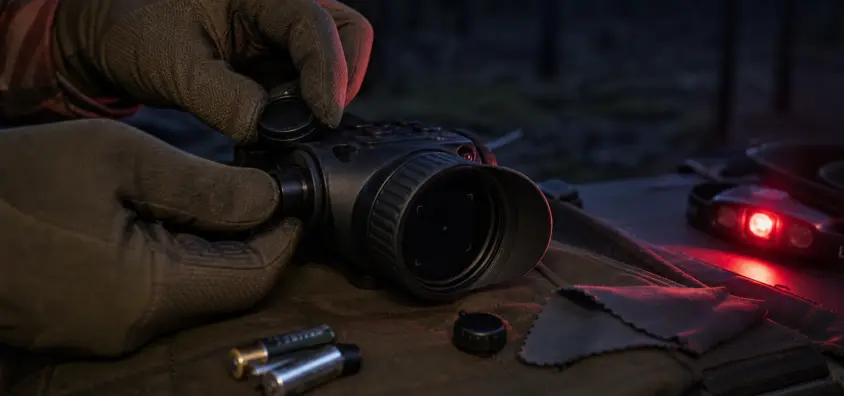
One of those failures is a thermal scope black screen, which can seem worse than it truly is. You start up before a hog hunt, the logo comes up, the reticle is in place, perhaps the menu is displayed, but the live thermal image is gone. Screen is sometimes blank. In some cases the thermal scope menu will function, but the image will not be displayed. The image becomes black immediately after the calibration.
I go through a strict order of troubleshooting steps: first, rifle safe; second, symptom; third, eliminate simple causes; and then, manufacturer and/or dealer support for the optic. There are a few reasons why a thermal scope will turn on with a black screen and not necessarily indicate that the sensor is dead.
This guide only addresses issues with the power being on or partial display – reticle showing without image, OSD showing without a picture, black after NUC, frozen image, no heat signature visible. If the optic refuses to turn on at all, read NV Guide USA’s guide to a thermal scope that won’t turn on or keeps shutting off. Use the section Thermal Scopes & Imaging for the entire thermal cluster.
The Short Version
When the thermal scope display fails, go through the following problem steps:
- Before touching the buttons, cables, batteries or app, make the rifle safe.
- Check the specific symptom: dead optic, reticle no picture, frozen, black after calibration, or black view in app only.
- Check the lens cap, shutter cover, objective obstruction, brightness, standby mode, palette, diopter, and eyepiece focus.
- Perform the normal NUC/FFC procedure as described in the manual and find out if the short dark pause is normal.
- Check for good power. If the menu is still on, but the thermal scope is blank, this can be due to low voltage.
- Switch off Wi-Fi, app live view, recording and unneeded menu loads during testing.
- Distinguish between "no heat signature" and "no image." Low contrast is NOT sensor failure.
- If menus and reticle are clear but image is black after basic checks, document the pattern and contact official support.
Avoid running anything that you see on a forum that resets. Never keep troubleshooting behind a loaded rifle. Don’t presume that all thermal scope black screens are field-repairable.
The first step is to define the black screen symptom.
If the optic is totally dead, it is a power issue (unless you can prove otherwise). No response from the power button, no boot sound, no display glow, no battery icon – this is not the same as thermal scope reticle but no image. Always check batteries, caps, contacts, external power and charging prior to diagnosing the sensor or display.
That’s a power troubleshooting article. In this case, we’re primarily concerned with scopes that demonstrate some degree of responsiveness, but don’t produce a usable thermal image.
Reticle, Menu or OSD is visible but no thermal image is present.
It is the typical partial display presentation symptom. The reticle appears. Battery status appears. Menu icons move. The thermal scope not displaying an image, but an OSD, typically indicates a problem with the path from the lens to the display and not an all-out display failure, but rather one of the following: obstruction of the lens path, OSD calibration state, sensor feed, processing of images, firmware state or real hardware failure.
In support, this detail is important. The meaning of "the scope is black" is unclear. The menu functions, the reticle is visible, but the live thermal image is black" is helpful.
Screen freezes, goes blank and resumes, one or more times.
If the problem occurs while scanning, a thermal scope frozen screen may appear as a black screen. Some scopes stop while they’re calibrating. Some do freeze when the battery runs low, in cold temperatures, when recording heavy data, while streaming via Wi-Fi, or when firmware is unstable. If the image reappears without you doing anything and the controls are still responsive, note the time and conditions before you conclude that the sensor may not be functioning.
If the primary issue is delay or lockup, NV Guide USA has a more comprehensive guide to thermal scope freezing or lagging.
Black After Calibration/NUC
A scope that is black after calibration may be normal for a short period of time, particularly if it is a shutter or cover based correction process. After multiple safe restarts and normal calibration procedure it is not normal to have the screen black with the menus visible.
It’s a matter of length and repetition. Many models are expected to pause for a short period of time. Support evidence is a persistent black image after each NUC/FFC cycle.
Do not make contact with the scope until you have performed a safety check.
Before using the rifle, make sure it is safe.
Do not forget to make the rifle safe before any troubleshooting of the mounted optic is attempted. Ensure the muzzle is in a safe direction, finger is off the trigger, safety is on (if applicable), and unload or otherwise practice normal safe-condition procedures. If batteries need to be taken out, USB-C cord plugged in, an app opened or a menu looked at for more than a few seconds, consider it bench work.
Electronic issues are distracting. That’s why the safety of firearms must be paramount.
Make sure you know if it is a field problem or bench problem.
In the field, I only perform low-risk checks: lens cap, brightness, palette, standby, NUC, and battery swap (if there’s a manual to support restarting). Firmware updates, factory resets, storage formatting, cable testing, support documentation – anything involving this belongs at home, on a bench, or on an unloaded rifle.
If the hunt can proceed safely with another optic or light check later in the day, then do. Never pressure a suspect thermal scope simply because you are in the stand.
These are simple tests that may appear as a black screen.
Lens Cap, Shutter, Cover, or Obstruction is the name of the first.
Start with the front of the scope. A thermal scope no image complaint may be caused by a closed lens cap, slipped cover, taped objective, dirty or muddy lens, snow or a stuck external calibration cover. Sounds obvious right? Until it occurs during the night while wearing gloves.
Note also if the objective is directed at something useful. A nearby wall, the inside of a blind, a truck interior or your own jacket can create a flat or black look. Go to a controlled location where there are clear temperature variations, such as a hand near a safe backstop, a warm vehicle tire (from a safe distance), a tree line vs open sky, or a house wall from a legal and safe location.
You can adjust the brightness, standby, OSD, and palette settings.
Sometimes a thermal scope blank screen is a display setting issue. Test for brightness, screen timeout, standby, display-off and test eye sensor behavior if available on the model. Then, go back to the basic palette, like white hot or black hot. Weak scenes can look wrong with specialty color palettes, inverted settings, low brightness and aggressive contrast adjustments.
If the menu displays, but the live scene does NOT, don’t change 10 settings at once. Change one variable, observe and then go to the next.
Diopter/Eyepiece IS NOT A SENSOR FAILURE!
The diopter sharpens the reticle and display to your eyes. It does not aim the thermal sensor at the target. Adjust the diopter so that the reticle is in focus. When reticle focus is good but the scene is soft, use objective focus or image settings. NV Guide USA’s how to focus a thermal scope guide solves that problem.
A poor diopter setting generally doesn’t cause a ‘thermal scope sensor not working’ symptom. It generates user side blur.
The process of Run Calibration / NUC / FFC getting right.
NUC or FFC is supposed to fix this.
Non-uniformity correction (NUC) and flat-field correction (FFC) are two calibration procedures used to reduce the non-uniformity of the sensor and of the images. The scope could have an internal shutter, external lens cover, manual activation, automatic timing or a semi-auto prompt.
The idea is not to "repair" the scope. To refresh the image and make the sensor and processing pipeline display a cleaner scene. If you need more background, you can read about it on NV Guide USA’s blog on thermal NUC explained: why your scope clicks?.
Manual, Semi-Auto, Auto and External Cover Calibration are all available.
Use the precise procedure for your model. Manual calibration requires closing the lens cap for some scopes. Others have an integrated shutter. Some allow you to select auto, semi-automatic or manual NUC. If you use the wrong sort of calibration without the objective covered or uncovered, or looking at a bad scene, then the image may look worse until it can be corrected.
If the thermal scope NUC calibration issue began after making a change to settings, then return to the recommended calibration mode and perform it in a controlled scene.
If the screen freezes or goes dark for a short period during Calibration:
A short click/freeze/dark frame may be experienced during NUC/FFC. It is not like a permanent black picture. See how responsive the menu is and if the thermal image comes back in one or two seconds.
If all calibration results are black, restart only according to the manual and stop repeating the procedure. Unsupported resets do not enhance evidence.
The scope can still go black even if it turns on.
Low voltage at startup.
Thermal optics can start up with marginal power and fail when under load. All the following put a strain on the battery: startup, sensor operation, display brightness, Wi-Fi, recording, rangefinder functions, and cold weather. As the "image pipeline" acts up, a weak battery may make the menus visible.
Use a known good charged battery or approved power source for testing. However if the black screen appears to go away then you’ve identified a power stability issue, not necessarily a failing sensor.
External Power, USB-C Cables and Power Banks
Outside of the power source there are still other factors: charge-only cables, loose USB-C cables, low-power charging packs, power banks that go into power-save mode, cold packs and USB-C cable motion on recoil. When using power bank, if the thermal scope turns on and screen is black, test with internal power or a manufacturer approved external power set-up.
Not all USB-C cables are created equal. Cables that have been used to charge phones might not be reliable on a rifle mounted optic in cold weather.
Cold Batteries and Recoil Interruptions
Cold batteries sag. For springs and contacts, stable contact can be lost during recoil. Battery caps may be closed, but not secure. Check contacts for dirt, moisture, corrosion, broken wraps on rechargeable cells and cross threaded caps.
NV Guide USA has a more comprehensive care guide in their article for thermal scope maintenance detailing lens, batteries, contacts, storage and pre-hunt inspection.
Firmware, App, and Recording States
After a Firmware Update
A thermal scope firmware problem is possible when upgrading or if an upgrade has failed or been interrupted, or after resetting the settings. Make sure to get the information on the exact model, version of the firmware, version of the app, and if the black screen occurred right after the update. Only use the official manufacturer instructions and official firmware sources.
NV Guide USA’s thermal scope firmware update guide tells you about the safer update discipline. Don’t install random files or combo of buttons from forums.
You can have a black screen in App Live View while Scope View is working.
If the phone app live view is still black, but the eyepiece live view is OK, then separate the app path from the optic path. Deactivate the Wi-Fi, close the app and use the scope independently. Then later test app connection with official app, correct permissions and charged devices.
That symptom is more to thermal scope app not connecting and less to sensor failure.
The image freezes when recording, with Wi-Fi or when loading the menu.
The additional processing and storage load of recording. The streaming of Wi-Fi can contribute an additional layer. Low voltage while recording, file error, app stream, and/or full or questionable storage card can result in a thermal scope screen not responding complaint.
Test with recording off, Wi-Fi off, base magnification and just a basic palette. If it performs well there, add recordings and app functionality on a one-by-one basis. NV Guide USA’s thermal scope video recording guide addresses video recording-specific issues.
No heat signature does not always mean no image.
The scene has low thermal contrast but the Scope is working.
Thermal is no magician! It measures temperature difference. Animals and objects can appear flatter than expected due to rain, fog, warm ground, high humidity, sun-heated backgrounds and thermal crossover. That could be interpreted as "thermal scope no heat signature" when actually the sensor is functioning.
Check a known warm object in a safe direction. If your hand, vehicle tire or animal feeder motor or building vent appears to have contrast, then the scope is producing an image. It could be conditions, focus, palette, gain, contrast or expectations. What’s better is the path to the NV Guide USA’s thermal scope image quality problems and thermal crossover explained articles.
But detection doesn’t equate to positive identification.
When the picture is operating, it does not imply detection is identification. A "heat" on a screen does not mean it is "legal" to shoot, it does not mean it is "safe" to shoot, and it does not mean that it is the animal you believe it to be. Verify target, backstop, property line, and local law. The black screen issue should never lead you to guess.
If you think it could be a real hardware or support issue, the following may be your clues.
I’m getting the black screen with the clear menus, despite some basic checks.
If the reticle and menus are still good but the live picture is still black following safe basic checks – lens open, normal brightness, simple palette, correct calibration, stable power, Wi-Fi off, recording off and controlled scene tests, the correct path is to support.
Other signs that may indicate a need for support are appearance of repeated black images after each NUC, image does not appear until battery removed, black image after failed firmware update, menus are visible but no thermal feed is seen with multiple power sources, water intrusion, impact damage, and obvious display artifacts.
Don’t overuse the optic. Repeated factory resets don’t generally resolve a thermal scope sensor not working issue.
It is important to document the Pattern BEFORE calling support.
Good documentation = quick support. Record:
- Manufacturer and model number, serial number, software version
- Type and state of batteries, and external power configuration
- Temperature and weather conditions
- Visibility of reticle, menu, OSD and icons
- If the black screen occurs at startup, after NUC, during recording, or only in the app.
- A controlled warm target is shown or not
- Video clip or photos of symptom, if safe and permitted
- Recent firmware update, drop, water or battery problem.
Then reach out to the manufacturer or dealer via proper channels. Don’t go brand specific unless you are doing the specific manufacturer’s documentation.
Field Troubleshooting Checklist
When the scope is powered on and the image is black, refer to this checklist:
- Make the rifle safe.
- Ensure that the optic is powered on and not in standby.
- Ensure no lens cap, cover, shutter, mud, snow, water or obstruction.
- Adjust the brightness to a comfortable level.
- Get back to white hot or black hot.
- Confirm reticle/menu/OSD behavior.
- Only diopter is used to adjust reticle/display sharpness.
- Focus the objective on a known scene.
- Perform normal NUC/FFC from the manual.
- Safely test an object that is known to be warm.
- Change/recharge batteries from a known good battery source.
- Take out potentially suspect power cables and power banks.
- Deactivate Wi-Fi, app live view, recording.
- Only restart as per the manual.
- If the menus remain clear, but the picture remains black, stop and contact support.
Quick FAQ
Why can’t I see anything on my thermal scope except the reticle? If the display shows the reticle and menu, the display is at least partially functional. Test for lens obstruction, brightness, palette, calibration, power stability, Wi-Fi/recording load, and controlled warm targets. If these tests are not successful, then the image path might require assistance.
So will a thermal scope that is black after calibration always be broken? No. During NUC/FFC, a short burst of dark or freeze can be considered to be normal. If it is a black screen following calibration, particularly if the menus are clear, it should not be overlooked.
Are there any issues with blank screens due to low battery? Yes. When the scope is booted and runs at low voltage it will exhibit strange behavior. NEVER DO ANY DIAGNOSING ON FIRMWARE OR HARDWARE WHEN THE BATTERY IS NOT KNOWN GOOD OR FROM AN APPROVED EXTERNAL POWER.
What if the app is black, but the scope view is working? Treat that as an app, Wi-Fi, permissions, or phone problem first. With Wi-Fi disabled, test the optic via the scope’s eyepiece.
Does a lack of heat signature indicate a failure of the sensor? Not always. Detail can be obscured by low thermal contrast, weather, focus, palette and gain settings. Test a known warm object safely before rendering it a sensor failure.
When to stop troubleshooting and call support? Once the reticle/menu/OSD is clear, basic checks have been performed, stable power, NUC/FFC has been performed correctly, and the live thermal image is black or fails continuously, call support.
IR Illuminator Not Working With Night Vision? Beam, Battery, Focus and Compatibility Check.
Is your NV not turning on? Battery, Contacts, Mount and Tube-Safe Troubleshooting
Night Vision Collimation and Alignment: Fix Double Vision, Eye Strain and Dual-Tube Setup Issues